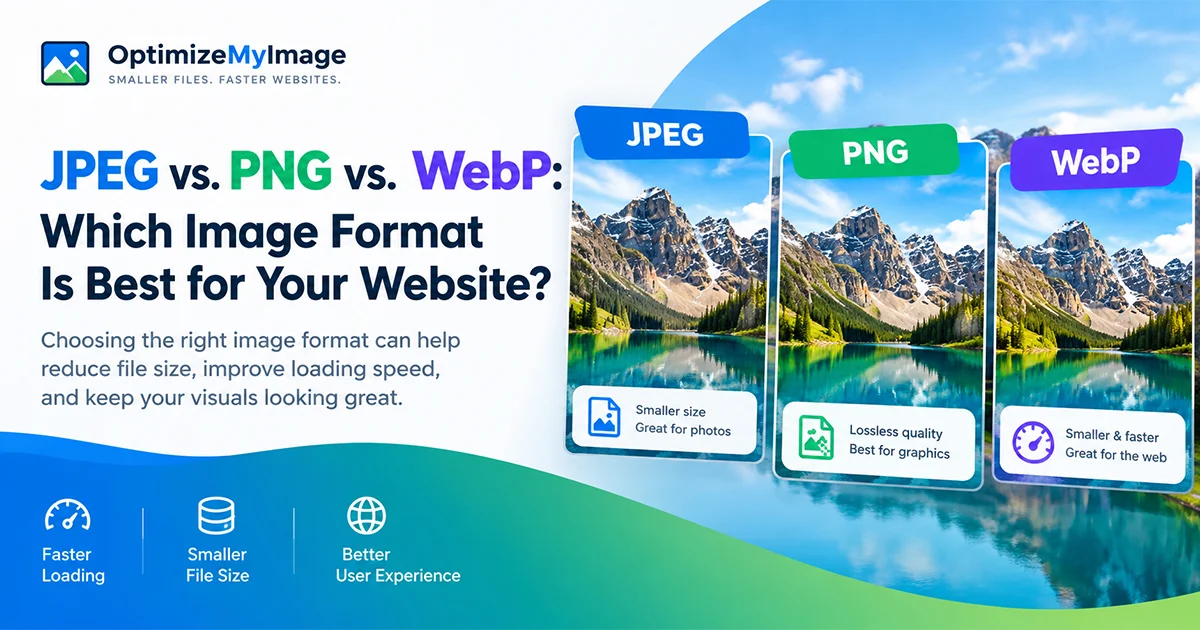
WebP, JPG (JPEG), and PNG are common image formats, but they are designed for different needs. The right choice depends on the type of image, whether transparency is required, and the browsers or software that need to open it.
Which Image Format Is Best for Website Speed?
For most modern websites, WebP is a strong choice because it can significantly reduce image transfer sizes.
However, image format alone does not determine website speed.
Other important factors include:
- Image dimensions.
- Compression settings.
- Responsive image delivery.
- Browser caching.
- Lazy loading.
- Server response time.
- Content Delivery Network (CDN) configuration.
For example, converting a 5 MB image to WebP may reduce its size, but displaying an unnecessarily large image on a small mobile screen still wastes bandwidth.
For better performance, combine efficient image formats with proper resizing and responsive image techniques.
How Image Formats Affect SEO
Google considers page experience and performance signals, including Core Web Vitals, within its broader ranking systems.
Large images can contribute to poor loading performance, particularly when they affect the Largest Contentful Paint (LCP) metric.
LCP measures how long it takes for the largest visible content element to render within the viewport.
If your featured image is the largest element on a page, its size and loading behavior may significantly affect your LCP score.
Using appropriately compressed images can help improve loading performance.
However, WebP itself is not a direct Google ranking boost. Its SEO value comes from helping you deliver a faster, more efficient website.
Image Optimization Best Practices for SEO
Follow these recommendations when publishing images:
1. Choose the appropriate format
Use WebP when practical, JPEG for compatible photographic content, and PNG when lossless quality or transparency is necessary.
2. Resize images before uploading
Avoid uploading a 4000-pixel-wide image if your website only displays it at 800 pixels.
3. Compress images
Reduce unnecessary file size without introducing distracting visual artifacts.
4. Write descriptive image filenames
Instead of:
IMG_001234.jpg
Use:
jpeg-vs-png-vs-webp-comparison.webp
5. Add meaningful ALT text
ALT text helps describe images to users who rely on screen readers and provides search engines with useful image context.
Example:
Comparison of JPEG, PNG, and WebP image formats for website optimization.
6. Use lazy loading appropriately
Apply lazy loading to images located below the initial viewport.
Avoid lazy-loading important above-the-fold images, particularly the main LCP image.
7. Specify image dimensions
Include width and height attributes to help browsers reserve the correct display space and reduce layout shifts.
How to Convert JPEG and PNG Images to WebP
Converting your existing website images to WebP can be a practical way to improve image delivery.
You don't necessarily need advanced image-editing software to do this.
Using an online image optimization tool can simplify the process.
Step 1: Open OptimizeMyImage
Visit OptimizeMyImage and access the available image optimization tools.
Step 2: Upload Your Image
Select the JPEG or PNG image you want to optimize.
Step 3: Choose Your Optimization Settings
Select the available compression or output settings based on your image requirements.
If WebP conversion is available, choose WebP as the output format.
Step 4: Review the Result
Compare the original image with the optimized version.
Check for visible quality loss, especially around text, edges, and fine details.
Step 5: Download and Use Your Optimized Image
Save the optimized file and upload it to your website.
For the best results, always verify the image's appearance and file size before replacing your original version.
Best Image Format for Different Website Use Cases
Still unsure which format to choose?
Here is a practical guide based on common website requirements.
Remember that the recommended format may vary depending on your content management system, design requirements, and browser compatibility needs.
JPEG vs. PNG vs. WebP: Which Should You Choose?
There is no single image format that is perfect for every situation.
Each format has its own strengths.
Choose JPEG if:
You primarily work with photographs, want broad compatibility, and need reasonably small files.
Choose PNG if:
You need lossless image preservation, sharp screenshots, or transparent graphics.
Choose WebP if:
You want a versatile format that supports efficient compression, transparency, and modern website optimization.
For most modern websites, WebP is a sensible default because it combines efficient compression with broad browser support.
Nevertheless, retaining JPEG and PNG alternatives can be useful when compatibility or specific image requirements demand them.
Frequently Asked Questions (FAQs)
1. Is WebP better than JPEG?
WebP often provides smaller file sizes than JPEG at comparable visual quality. It also supports transparency, which JPEG does not.
However, the best choice depends on your image, compression settings, and compatibility requirements.
2. Is PNG better quality than JPEG?
PNG uses lossless compression, while JPEG uses lossy compression.
This means PNG preserves image information without introducing lossy compression artifacts.
However, PNG files are often significantly larger than JPEG files when storing photographs.
3. Does WebP improve website SEO?
WebP can indirectly support SEO by reducing image transfer sizes and improving loading performance.
However, simply converting an image to WebP does not guarantee higher Google rankings.
4. Can WebP images have transparent backgrounds?
Yes. WebP supports transparency, making it suitable for logos, illustrations, and other graphics that require transparent backgrounds.
5. Do all browsers support WebP?
WebP is supported by all major modern browsers, including Chrome, Firefox, Safari, and Edge.
Some outdated browser versions may lack support.
6. Should I convert every image on my website to WebP?
Not necessarily.
WebP is an excellent default, but some existing JPEG or PNG images may already be efficiently optimized.
Compare file sizes and image quality before converting everything.
7. What is the best image format for blog posts?
WebP is generally a good option for blog images because it can provide high visual quality with relatively small file sizes.
JPEG is also suitable for photographs, while PNG works well for screenshots and graphics containing text.
Final Verdict: Optimize Your Images for a Faster Website
Choosing between JPEG, PNG, and WebP is about finding the right balance between image quality, file size, and compatibility.
JPEG remains a reliable option for photographs, PNG is excellent for lossless graphics and transparency, and WebP offers a versatile solution for modern websites.
For most website owners, using WebP alongside proper image compression and resizing is a practical way to reduce unnecessary image weight.
Remember, image optimization isn't simply about making files smaller. It's about delivering the best possible visual experience without compromising website performance.
Ready to Optimize Your Website Images?
Large image files could be slowing down your website unnecessarily.
Start improving your image delivery by compressing and optimizing your website visuals.
Visit OptimizeMyImage and start optimizing your images today.
Smaller files. Faster websites. Better user experiences.